Resolve a Merge Conflict with the Native Merge Editor
The native merge editor helps you combine the incoming package value with the current value when Activate cannot merge every change automatically. It is available when the PR42846_MergeToolNativeViewerfeature flag is enabled. If the editor does not open for you, ask your Activate administrator whether the flag is enabled.
Understand the panes
The editor shows three panes, side by side:
- Inbound — the value from the incoming package.
- Result — the editable value that will be saved. It sits in the middle, between the two source panes.
- Current — the value currently in your environment.
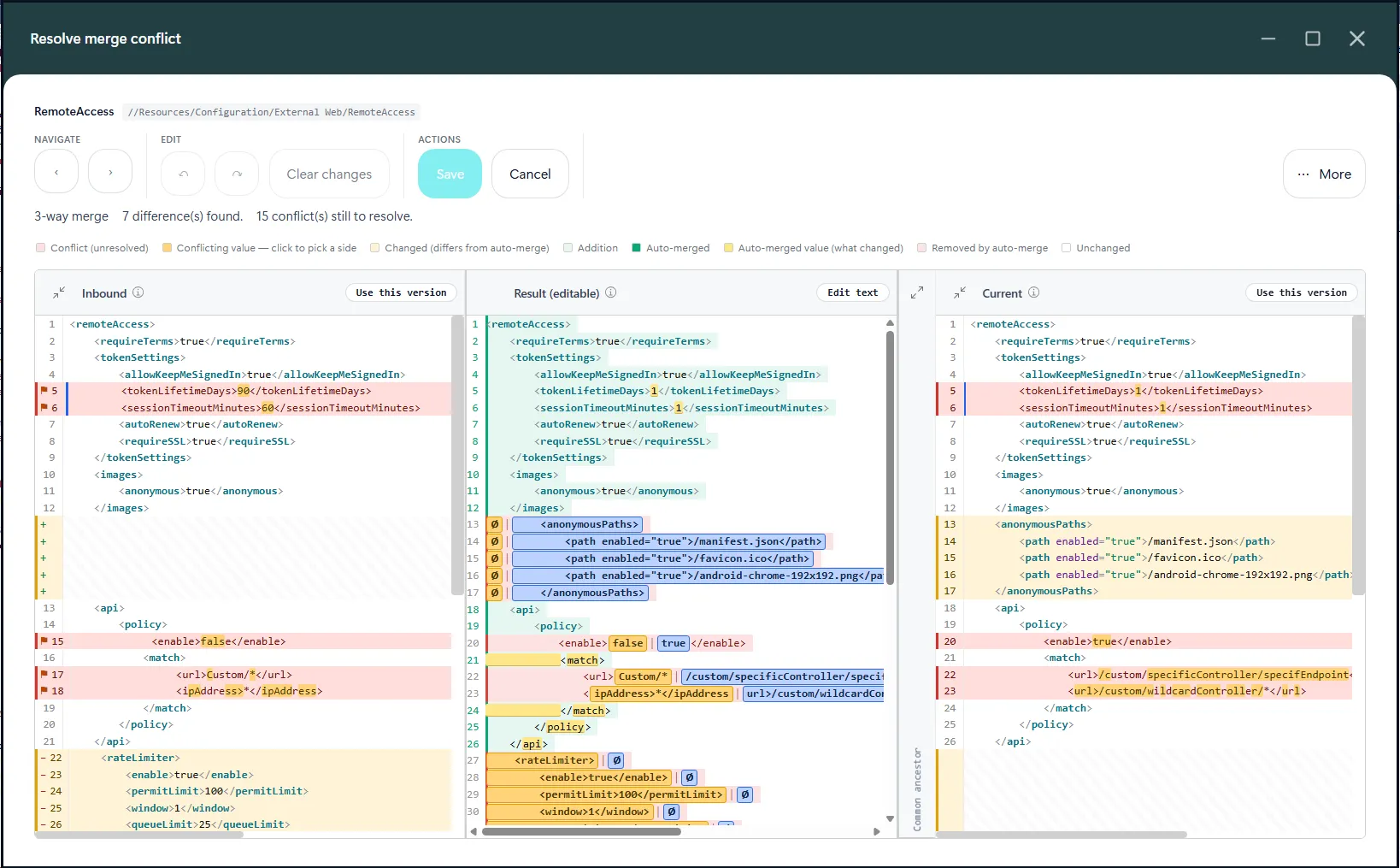
Each source pane shows exactly that version as it is — the Inbound pane shows the inbound value and the Current pane shows the current value, so a line that exists in only one version appears only in that pane. Shared lines are aligned across the panes so you can focus on the differences; a difference is highlighted as a coloured band (amber where the two versions differ, red where both sides changed the same region). Within a changed line, the exact characters that differ are highlighted, so a small edit inside an otherwise-identical line is easy to spot.
A colour legend strip above the panes names each colour (conflict, the clickable conflicting value, changed, addition, auto-merged, removed by auto-merge, unchanged) so you do not have to guess what a band means.
The three panes share one continuous surface and scroll together by default — scrolling any one column (vertically through a long value, or horizontally along a long line) moves the other two with it, so matching lines always stay side by side. The scroll lock button in the toolbar (🔒) is on by default; toggle it off (🔓) to let each column scroll independently when you want to look at one pane on its own.
The result starts with Activate's automatic merge, including the conflicts — but a conflict is never a magic placeholder you could accidentally save. Instead each conflicting line is shown as real, editable, best-effort merged text: the parts both versions agree on are already merged, and only the value that genuinely differs is left to you, shown inline as two clickable option chips — the incoming value and the current value, side by side. The whole line is banded red so you can see at a glance it still needs a decision, and the differing value is highlighted more strongly so your eye goes straight to it.
- Click the incoming chip or the current chip to resolve that value in one click — the chip is replaced by the value you picked and the line becomes ordinary resolved text.
- Or edit the line directly if the right answer is neither side.
Because the Result always holds real text, the old savable ‹‹ unresolved conflict ›› placeholder is gone entirely — you can no longer accidentally save an unresolved marker. Save stays disabled until every conflicting line has been resolved (by clicking a chip or editing it), and the count of conflicts still to resolve is shown next to it. Lines the engine decided on its own (an auto-merge, including where it dropped a line that existed on only one side) are marked in the Result with a left-edge auto-merge marker, so an automatic decision is always visible rather than silent. The highlighting updates live as you resolve — there is no refresh button.
In the Result pane, only the lines you have actually changed from the automatic merge are highlighted — taking a version, taking a block, dragging lines in, or typing an edit highlights just those lines. Lines that still match the automatic merge stay plain, so the real changes stand out even after you choose Use this version. The (i) icon in the Result header explains the highlight (hover it for the key).
All three column headers (Inbound, Result, Current) share the same compact header row, so they line up; each carries an (i) tooltip for its details.
2-way and 3-way merges
A badge above the panes tells you which kind of merge you are resolving:
- 3-way merge — there is a previous system version (a common ancestor) that both the inbound and current versions diverged from. Activate uses it to work out, for each change, which side actually changed — so it can auto-merge more and conflict less.
- 2-way merge — no previous system version — there is no common ancestor (for example, a brand-new value with no prior system baseline). Every differing line is a straight incoming-vs-current choice.
Knowing the type up front makes the result easier to read, so you no longer have to deduce it from the file's history.
The Common-ancestor column (3-way only)
For a 3-way merge the editor can also show the raw common ancestor — the earlier system value both versions came from — in its own read-only column between the Result and Current panes. It is collapsed by default (a thin rail labelled Common ancestor on the right); click its expand control to open it and see the ancestor content, and collapse it again when you are done. It scrolls together with the other panes like any column. It is read-only — a reference only, never a take target.
How precisely the ancestor lines up: on lines all three versions share, the ancestor sits exactly opposite them. Inside an auto-merged run the engine does not record which ancestor line each merged line replaced, so there the ancestor is shown best-effort (aligned on the shared lines around it) — enough to see what the ancestor was, which is its purpose. A 2-way merge has no ancestor, so no column appears — which is itself the signal that it is a 2-way merge.
The badge and the column always agree. The "3-way merge" badge appears if and only if the Common-ancestor column is actually rendered: both are driven by one condition (the merge has a common ancestor and the raw version texts needed to show it). So you will never see "3-way merge" without a corresponding ancestor rail — if the badge says 3-way, the collapsed ancestor column is there to expand.
Resolve differences
- Review Inbound and Current to understand what changed and why.
- Use Previous difference and Next difference to move between changed regions. The difference count shows how many regions are identified.
- Resolve a conflicting value with one click. On a conflicting line the differing value is shown as two chips — the incoming value and the current value. Click the one you want and that value is written into the Result line; the line is then resolved. This is the fastest path for the common "this value or that value" conflict.
- Edit the Result directly where needed — the chips are a shortcut, but every Result line is ordinary editable text if the answer is neither side.
- To copy text from a source pane, select one or more lines and right-click. Choose Take line(s) into result to place the selected lines in the result, Take whole block to accept the whole block of changes touching the clicked line (that difference region only, placed at the aligned position — not the whole file), or Append whole version to add that source's entire value to the end.
- You can also drag selected source lines into the result. Hold Ctrl (or ⌘ on macOS) while clicking to select separate lines; use Shift-click to select a range. Drop the selection at the insertion marker where it belongs.
- The Use this version button in the Inbound or Current pane header replaces the entire result with that pane's whole value. Use it when you intend to keep that whole version; it replaces other result edits. (This is distinct from the right-click Take whole block, which accepts only the clicked difference region.)
Edit safely
- Undo and Redo reverse or restore result edits. Keyboard shortcuts are Ctrl+Z, Ctrl+Y, and Ctrl+Shift+Z. When editing in the free-form text area, the text area's own undo behavior applies.
- Clear changes resets the result to the initial automatic merge. It does not close the editor. This action can itself be undone.
- Display contains Wrap lines, Ignore whitespace, and Show line endings (line-ending markers now show in the Result pane too, not only the source panes). It also contains Hide auto-merged lines, which folds long runs of automatically-merged lines into a "N auto-merged lines — click to expand" marker so you can concentrate on the conflicts; differences always stay visible, and it is off by default. These options affect how text is shown, not the underlying value being merged.
- Collapse / restore in a source pane header gives the other panes more room. At least one pane stays open.
- Maximise / restore is available in the title bar. The merge editor opens maximised by default.
- At narrow widths, some toolbar controls move into More.
Save or cancel
Select Save to persist the current result. The editor stays open and shows a Saved confirmation, so you can continue editing. Saving again persists the newer result. Close the editor when finished; the last saved result is kept.
Select Cancel to close the editor without saving changes made since the last save. If you have not saved, the original value remains unchanged and the conflict remains available for resolution.
If Save is disabled, resolve the outstanding conflicts or edit the result; the button's tooltip explains what is needed.
Known merge characteristics
The editor shows Activate's actual merge result honestly — it does not re-merge or second-guess it. The merge itself is line-based, which gives it a few characteristics worth understanding so you read them correctly rather than as faults in the tool:
- A moved line shows as a removal + an addition. If a line was moved from one place to another between versions, a line-based merge sees that as the line removed in one place and added in another, not as a single "move". Both show up as differences for you to confirm — this is expected.
- The merge decides what auto-merges and what conflicts. Activate's merge engine (the same one used across every Activate install) decides, change by change, what it can combine automatically and what it must hand to you as a conflict. Occasionally it will auto-merge something you would have liked to confirm, or raise a conflict on something that looks obvious. The editor surfaces that decision so you can adjust it (take a side, edit the Result) — the decision itself is the engine's, kept consistent with every other install.
- In a 3-way merge the result depends on the common ancestor. Which side a change is attributed to depends on the earlier system value both versions came from. If that ancestor is older or different from what you expect, the split of auto-merges vs conflicts can look surprising — expand the Common-ancestor column (above) to see exactly what baseline was used.
In all these cases the result is correct for the merge that ran; the editor's job is to show it clearly and let you finish it.